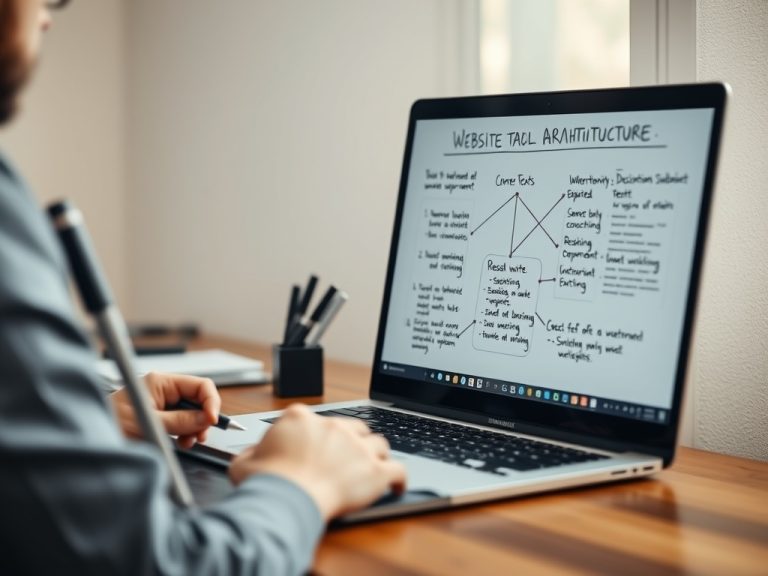
Quick notes for Article 1
- Files are individual items, while folders are containers that help you group related items.
- A simple naming system beats a complicated one you will not keep using.
- Backups, search habits, and periodic cleanup matter as much as folder structure.
Files and folders are the basic building blocks of everyday computer organization. A file is an item such as a document, photo, spreadsheet, download, or video; a folder is the container that helps you group files so they are easier to find later.
Beginners should care about this early because messy storage creates practical problems: lost downloads, duplicate copies, confusing versions, full drives, and accidental deletion. Once you understand how folders, names, locations, and backups fit together, your computer becomes less stressful to use.
The plain-English difference between a file and a folder
Think of a file as the actual thing you work with. A resume document, a vacation photo, a PDF invoice, a compressed ZIP archive, and an app installer are all files. Each file has a name and often a file extension, such as .docx, .jpg, .pdf, or .xlsx, that helps the operating system know which app should open it.
A folder is a place to keep files. Folders can also contain other folders, often called subfolders. For example, a “Work” folder might contain subfolders for “Invoices,” “Client Notes,” and “Presentations.” Microsoft’s overview of File Explorer in Windows is a useful starting point for seeing how folders, search, pinned locations, and storage areas appear in Windows.
The goal is not to create a perfect filing cabinet. The goal is to create enough structure that you can find the right item without guessing where you put it.
Start with locations before you create categories
Most computers already have common storage locations: Desktop, Documents, Downloads, Pictures, Music, and Videos. Cloud services may add synced folders, and external drives add separate storage areas. Before creating folders, decide which location is the home for each kind of file.
A reliable beginner setup might put active work in Documents, screenshots and camera imports in Pictures, temporary installers in Downloads, and finished archives in a cloud backup folder. That structure makes more sense than scattering everything across the Desktop. Readers who are just starting should also connect this habit to Domains and URLs Mistakes That Cause Website and Access Problems, because clear names help both local computer organization and web organization.
Create a naming system you can repeat on busy days
Good file names answer three questions: what is it, who or what is it for, and when was it created or finalized. A practical pattern is “topic-purpose-date,” such as “budget-summary-2026-05” or “client-notes-acme-2026-05-15.” Dates work best in year-month-day order because files sort chronologically.
Avoid names such as “final,” “new final,” and “final final 2.” Use a version number or status word instead: draft, review, approved, archived. If a file is shared with other people, use words that make sense to them, not private shortcuts only you understand.
Simple folder layouts that actually last
| Folder pattern | Best for | Why it helps |
|---|---|---|
| By project | Work, school, freelance tasks | Keeps every document for one outcome together |
| By date | Photos, receipts, monthly reports | Makes old material easier to archive |
| By file type | Templates, icons, audio, video | Useful when files are reused across projects |
| By status | Draft, review, published, archived | Helps prevent old versions from being mistaken for current work |
The best layout depends on how you search. If you remember client names, organize by client. If you remember months, organize by date. If you often compare device screenshots or setup notes, a topic layout can connect naturally with guides such as How to pick the right monitor size, panel, and resolution.
Search, shortcuts, and cleanup habits
Folders are helpful, but search is part of the system too. Use clear words in file names so search can find them. Pin only the folders you open every week. Too many shortcuts turn into clutter, which is the same problem in a different place.
Set a small cleanup rhythm. Once a week, empty Downloads of installers and duplicate files. Once a month, review large video, image, or archive files. Once a quarter, move finished work into an Archive folder. This is more realistic than trying to reorganize thousands of files in one afternoon.
Protect your structure with backups and permissions
Organization is not the same as protection. A neat folder can still disappear if the drive fails, a laptop is stolen, or a sync mistake deletes files across devices. Keep at least one backup outside the original computer, such as a trusted cloud service or an external drive. For sensitive documents, limit who can open shared folders and avoid placing private data in public sync locations.
Beginners using Linux or experimenting with another operating system should learn how file paths and permissions work before moving large folders between systems. That context fits well with Linux Basics Best Practices: Habits, Settings, and Shortcuts That Actually Help, where folder habits become part of a broader operating-system workflow.
File organization checks before clutter returns
A working system is easy to test. Can you find a tax document, a recent screenshot, a project draft, and a downloaded PDF in under one minute each? Can someone else understand your shared folder names without asking you? Can you tell which file is current without opening five versions?
If the answer is no, simplify. Use fewer top-level folders, clearer file names, and more consistent archive rules. The next useful learning step is to understand backups, syncing, and storage limits, because organized files are most valuable when they are also recoverable.
A calm first-week filing routine
For the next seven days, do not try to reorganize your entire computer. Create one clean home folder for active work, rename new files as you save them, clear Downloads twice, and back up anything you would hate to lose. That small routine builds the muscle memory that keeps folders useful long after the first cleanup.
If you share a computer with family or coworkers, add one more rule: separate personal, shared, and temporary material. Shared folders should contain copies or collaborative files, not private originals. Temporary folders should be safe to empty. Personal folders should not be used as a dumping ground for group work. This boundary keeps cleanup simple and reduces accidental sharing.